
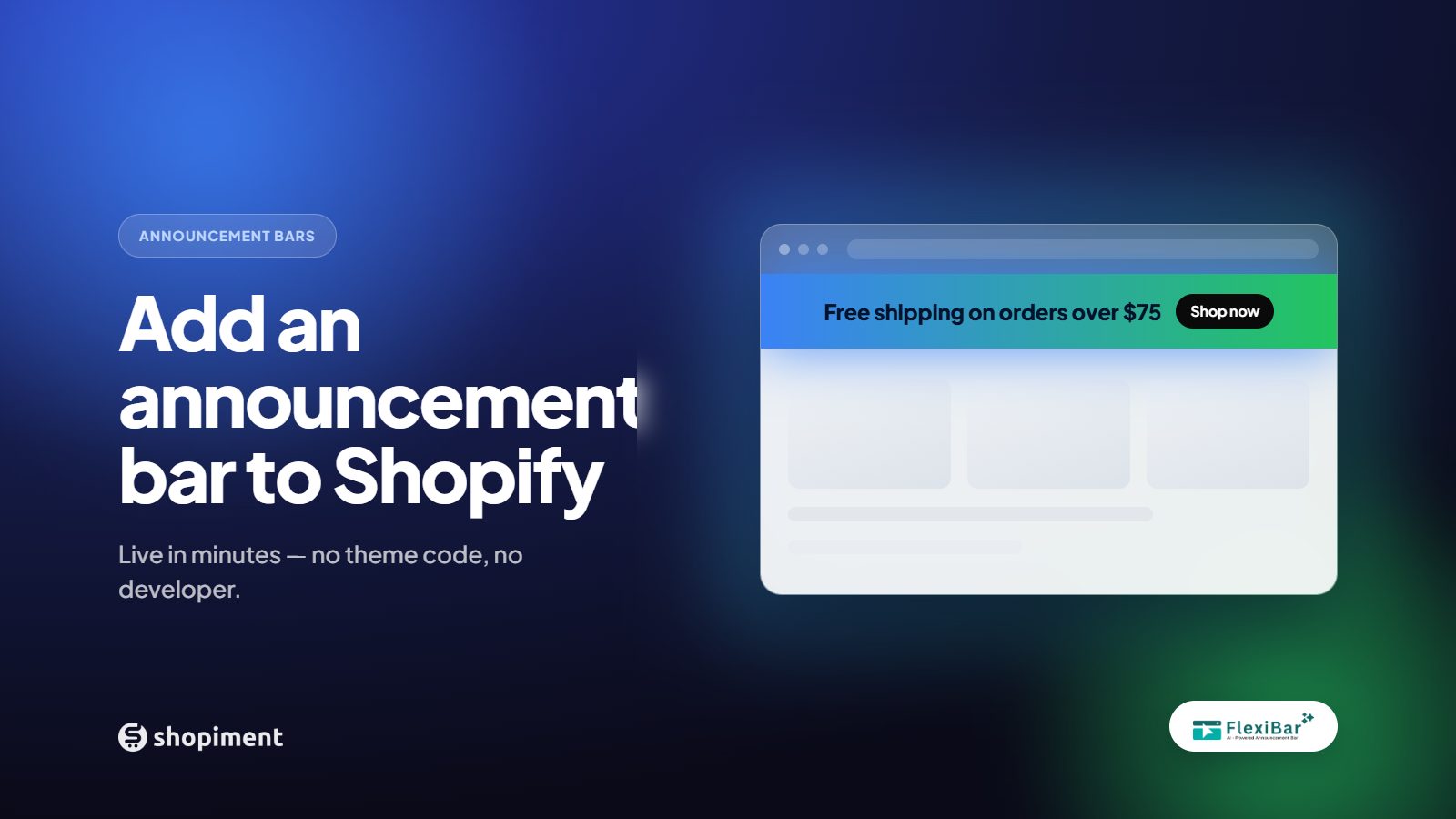
An announcement bar is the first thing a visitor sees when they land on your store, which makes it some of the most valuable real estate you own. Used well, it promotes an offer, sets shipping expectations, and nudges hesitant shoppers toward the cart. The good news is you do not need to edit theme code to add one. Here are the two ways to do it, and when to pick each.
Why the top bar is worth getting right
Shoppers form an impression of your store in the first few seconds. A clear message at the very top, whether it is free shipping over a set amount, a live sale, or a returns promise, answers the questions that otherwise cause people to bounce. It is cheap to run, easy to change, and works on every page at once.
Option 1: the announcement bar built into your theme
Most Online Store 2.0 themes include a basic announcement bar section. In your Shopify admin go to Online Store, then Themes, then Customize, and look for an Announcement bar block near the header. You can type a message and, in some themes, add a link.
It is free and already there, but it is also limited. Expect trade-offs like these:
- One message, one style, applied site-wide with little targeting.
- No countdown timers, sliders, or scheduling.
- No page, device, or country rules, so everyone sees the same thing.
- Design options are tied to whatever your theme happens to support.
Option 2: a dedicated announcement bar app (recommended)
If you want targeting, countdowns, multiple bars, and scheduling, a purpose-built app is the faster path. Installing one takes about a minute and still requires no code:
- Install the app from the Shopify App Store and approve it in your admin.
- Turn on the app embed in your theme when prompted, which is one toggle and no snippets.
- Create your first bar, write the message or generate it with AI, and pick colors and position.
- Set who sees it across pages, devices, countries, and a schedule, then hit publish.
What to put on your first bar
- Free shipping threshold: Free shipping on orders over $50.
- A live promotion: Summer sale, 20% off, ends Sunday.
- A trust message: 30-day free returns on everything.
- A launch or restock: New collection drops Friday at 10am.
A few rules so it converts instead of annoys
- Keep it under about 12 words so it reads in a glance.
- Run one message at a time, or rotate a small set on a slider.
- Match your brand colors instead of a jarring default.
- Only use urgency that is real, because fake timers train shoppers to ignore you.
Launch your first bar in about 60 seconds
Flexibar adds AI-written, targeted announcement bars to Shopify with no code and no theme edits.
Install Flexibar FreeReady to run bars that actually sell?
Flexibar is free to install. AI copy in 60+ languages, countdown timers, and a free Selling Bar that lets shoppers build a bundle and add it to cart - no credit card required.
Install Flexibar Free →⭐ Free on the Shopify App Store · Instant setup · No credit card